
Niveau :


5 minutes de lecture

HybridWebView .NET Multi-platform App UI (.NET MAUI) allows hosting arbitrary HTML/JS/CSS content in a web view and enables communication between the web view code (JavaScript) and the code that hosts the web view (C#/.NET).
Example with the HybridWebView
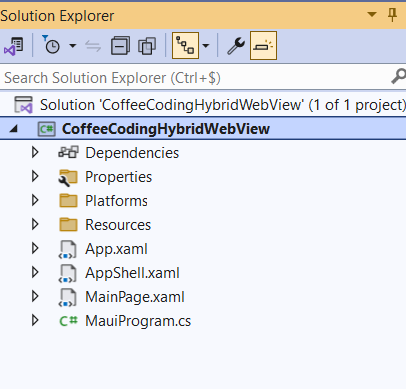
In the Visual Studio 2022 Preview version, create a new MAUI project:
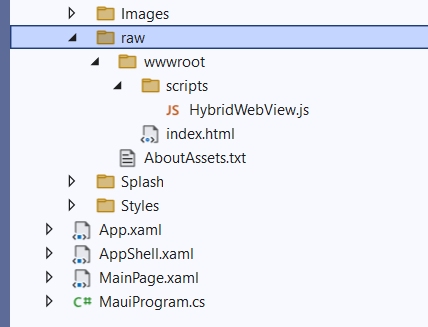
Let’s add web content to our project, specifically a file named _index.html_ and its HybridWebView.js. These files should be in raw format, located in your project directory Resources\Raw\wwwroot as shown below:
Here is the content of the index.html file:
<!DOCTYPE html>

<html lang="en" xmlns="http://www.w3.org/1999/xhtml">
<head>
    <meta charset="utf-8" />
    <title></title>
    <link rel="icon" href="data:,">
    <script src="scripts/HybridWebView.js"></script>
    <script>
        window.addEventListener(
            "HybridWebViewMessageReceived",
            function (e) {
                var messageFromCSharp = document.getElementById("messageFromCSharp");
                messageFromCSharp.value += '\r\n' + e.detail.message;
            });
    </script>
</head>
<body>
    <h1>HybridWebView app!</h1>
    <div>
        <button onclick="window.HybridWebView.SendRawMessage('Message from JS!')">Send message to C#</button>
    </div>
    <div>
        Messages from C#: <textarea readonly id="messageFromCSharp" style="width: 80%; height: 300px;"></textarea>
    </div>
</body>
</html>
And the JavaScript file:
window.HybridWebView = {
    "Init": function () {
        function DispatchHybridWebViewMessage(message) {
            const event = new CustomEvent("HybridWebViewMessageReceived", { detail: { message: message } });
            window.dispatchEvent(event);
        }

        if (window.chrome && window.chrome.webview) {
            // Windows WebView2
            window.chrome.webview.addEventListener('message', arg => {
                DispatchHybridWebViewMessage(arg.data);
            });
        }
        else if (window.webkit && window.webkit.messageHandlers && window.webkit.messageHandlers.webwindowinterop) {
            // iOS and MacCatalyst WKWebView
            window.external = {
                "receiveMessage": message => {
                    DispatchHybridWebViewMessage(message);
                }
            };
        }
        else {
            // Android WebView
            window.addEventListener('message', arg => {
                DispatchHybridWebViewMessage(arg.data);
            });
        }
    },

    "SendRawMessage": function (message) {
        window.HybridWebView.__SendMessageInternal('RawMessage', message);
    },

    "__SendMessageInternal": function (type, message) {

        const messageToSend = type + '|' + message;

        if (window.chrome && window.chrome.webview) {
            // Windows WebView2
            window.chrome.webview.postMessage(messageToSend);
        }
        else if (window.webkit && window.webkit.messageHandlers && window.webkit.messageHandlers.webwindowinterop) {
            // iOS and MacCatalyst WKWebView
            window.webkit.messageHandlers.webwindowinterop.postMessage(messageToSend);
        }
        else {
            // Android WebView
            hybridWebViewHost.sendMessage(messageToSend);
        }
    },

    "InvokeMethod": function (taskId, methodName, args) {
        if (methodName[Symbol.toStringTag] === 'AsyncFunction') {
            // For async methods, we need to call the method and then trigger the callback when it's done
            const asyncPromise = methodName(...args);
            asyncPromise
                .then(asyncResult => {
                    window.HybridWebView.__TriggerAsyncCallback(taskId, asyncResult);
                })
                .catch(error => console.error(error));
        } else {
            // For sync methods, we can call the method and trigger the callback immediately
            const syncResult = methodName(...args);
            window.HybridWebView.__TriggerAsyncCallback(taskId, syncResult);
        }
    },

    "__TriggerAsyncCallback": function (taskId, result) {
        // Make sure the result is a string
        if (result && typeof (result) !== 'string') {
            result = JSON.stringify(result);
        }

        window.HybridWebView.__SendMessageInternal('InvokeMethodCompleted', taskId + '|' + result);
    }
}

window.HybridWebView.Init();
Finally, let’s now add the HybridWebView control to our MainPage.xaml file as shown below:
<?xml version="1.0" encoding="utf-8" ?>
<ContentPage xmlns="http://schemas.microsoft.com/dotnet/2021/maui"
             xmlns:x="http://schemas.microsoft.com/winfx/2009/xaml"
             x:Class="CoffeeCodingHybridWebView.MainPage">

    <Grid RowDefinitions="Auto,*"
      ColumnDefinitions="*">
        <HybridWebView x:Name="hybridWebView"
                   Grid.Row="1" />
    </Grid>
</ContentPage>
If you run the application, you get the rendering of your HTML page like this:

Let’s add the code below to enable two-way communication between our Maui application and our JavaScript code, and vice versa:
<Grid RowDefinitions="Auto,*"
      ColumnDefinitions="*">
    <Button Text="Send message to JavaScript"
            Clicked="OnSendMessageButtonClicked" />
    <HybridWebView x:Name="hybridWebView"
                   RawMessageReceived="OnHybridWebViewRawMessageReceived"
                   Grid.Row="1" />
</Grid>
namespace CoffeeCodingHybridWebView
{
    public partial class MainPage : ContentPage
    {
        public MainPage()
        {
            InitializeComponent();
        }
        private void OnSendMessageButtonClicked(object sender, EventArgs e)
        {
            hybridWebView.SendRawMessage($"Hello CoffeeCoding from MAUI C# !");
        }

        private async void OnHybridWebViewRawMessageReceived(object sender, HybridWebViewRawMessageReceivedEventArgs e)
        {
            await DisplayAlert("I get you 5/5", e.Message, "OK");
        }
    }
}
And we indeed achieve bidirectional communication between the two elements:

Happy coffee coding

 Coffee Coding