
Level :


10-minute read

Visual Studio is a powerful integrated development environment (IDE) that offers a range of tools designed to facilitate developers’ work. Among these tools is Code Cleanup, an essential feature for improving the quality, readability, and consistency of the code. In this article, we will explore this feature in detail, its benefits, and its usage.
Cliquez ici pour la version Française
What is Code Cleanup ?
Code Cleanup is a built-in feature in Visual Studio that allows developers to automatically clean up and standardize their code according to predefined rules. It identifies and fixes common issues such as:
- La suppression des espaces inutiles.
- Le formatage des indentations.
- L’ajout des directives
usingnécessaires. - L’application des conventions de nommage.
- La suppression des variables ou méthodes inutilisées.
Code Cleanup relies on the analyzers from Visual Studio and the settings defined in configuration files like .editorconfig to make adjustments automatically.
Why Use Code Cleanup ?
Here are some major benefits of using Code Cleanup:
- Time Savings: By automating repetitive tasks, you save hours of manual cleanup.
- Code Quality: Your code becomes cleaner, more readable, and conforms to your team’s conventions.
- Simplified Collaboration: Adhering to standards facilitates code review and reduces conflicts during integrations.
- Error Reduction: By eliminating inconsistencies and small flaws, Code Cleanup contributes to the stability of your applications.
How to Use Code Cleanup in Visual Studio ?
Here is a step-by-step guide to make the most of this feature:
- Configure Rules: Access the options via
Tools > Options > Text Editor > Code Cleanupor by clicking on the broom icon below as shown:
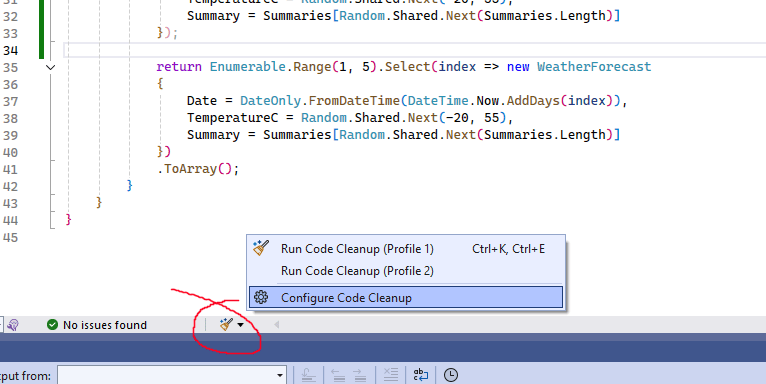
Configure your preferences according to your project conventions. For my example, I will use Profile 2 to add some best practice rules as below:
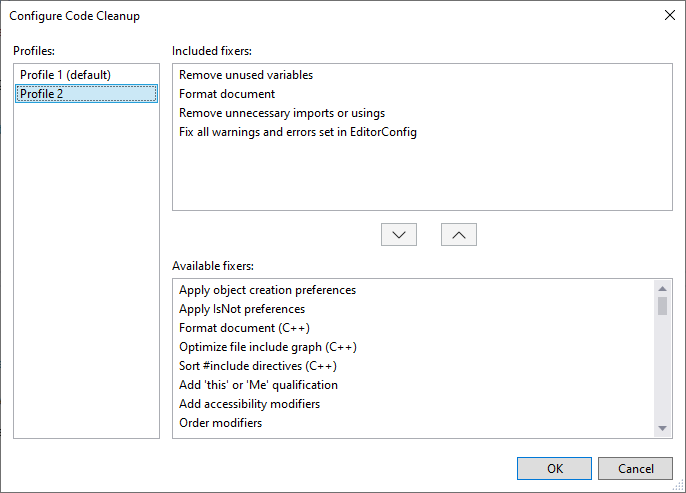
I have therefore established rules to remove unused variables, to properly indent files, to sort and remove unnecessary Usings, and to resolve all warnings and errors defined in my editorconfig file.
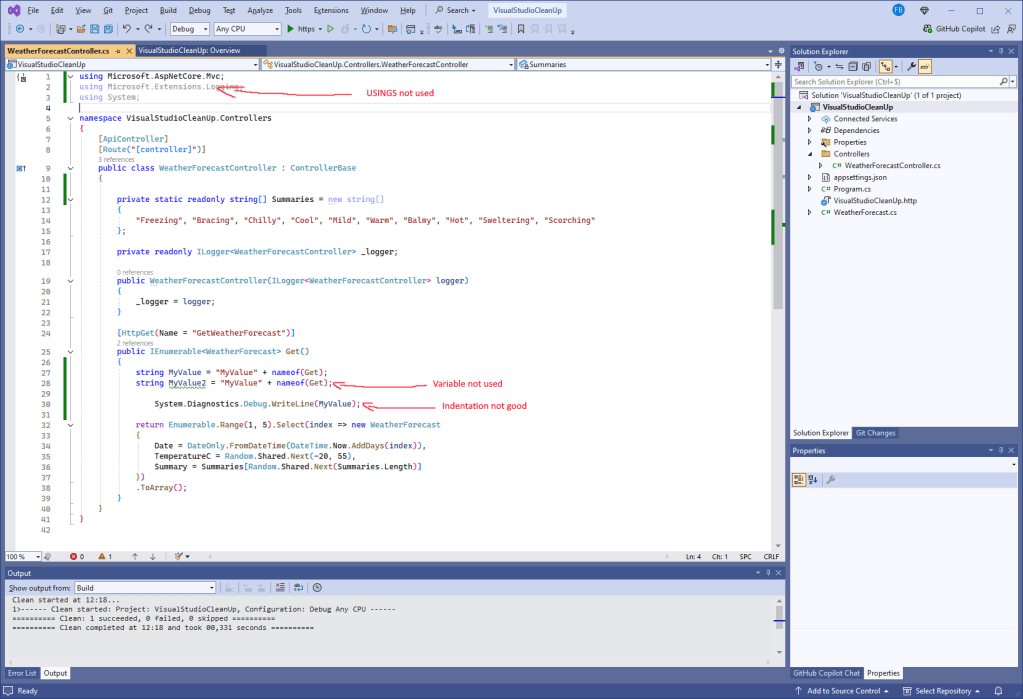
- Execute and Verify: Run Code Cleanup on the file or the entire project by selecting the appropriate profile (for my example, it’s
Profile 2). Below is an example of a file that has not yet been cleaned up:
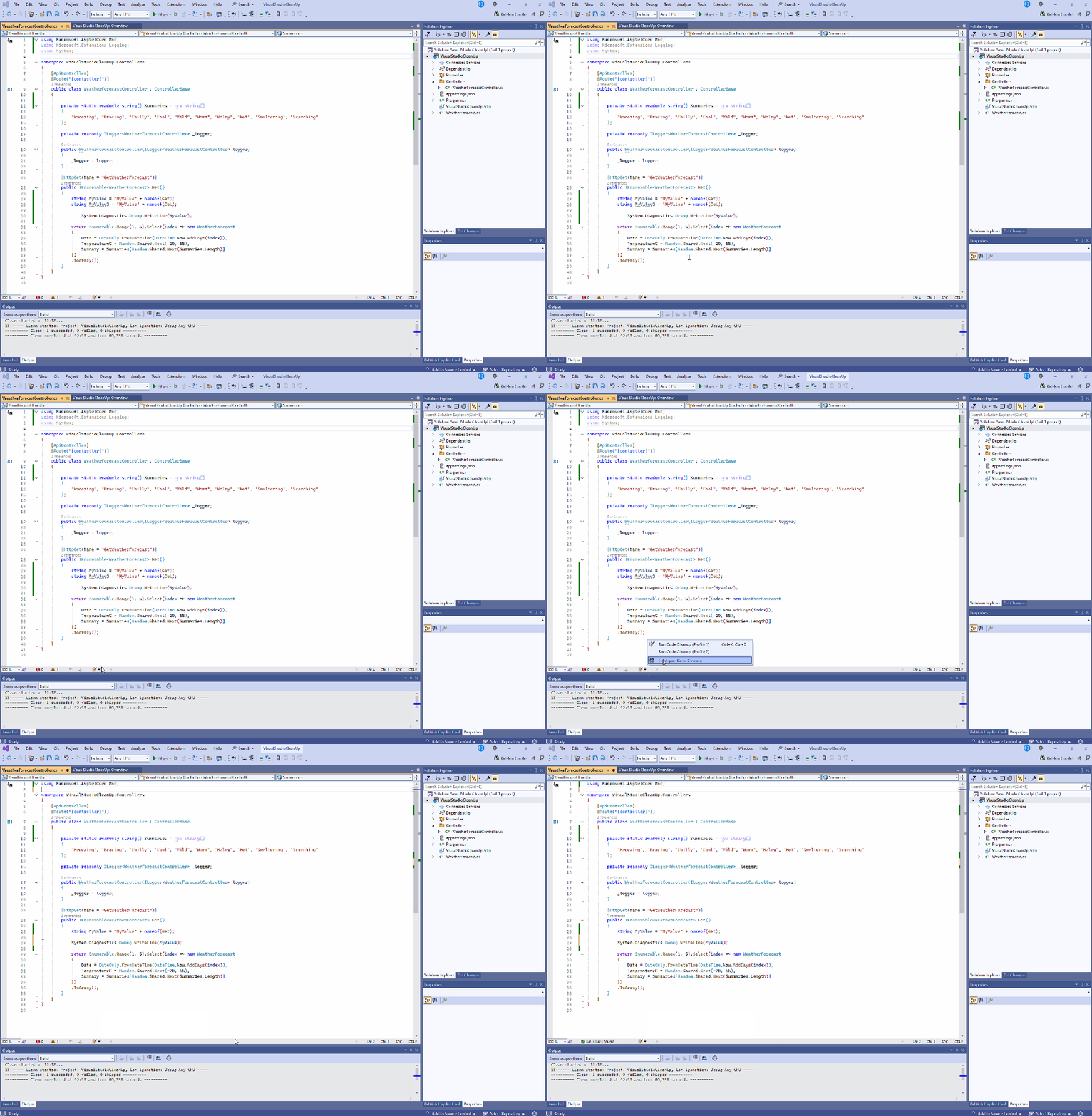
Below is the result of the Clean Code:
- Automation with
.editorconfig**: Add a.editorconfigfile to your project to define specific formatting rules. Visual Studio will respect these settings when running Code Cleanup.
Tips and Best Practices
- Use Custom Profiles: Set up multiple Code Cleanup profiles for different types of projects or stages of development.
- Integrate Code Cleanup into your CI/CD Pipelines: Some cleanup tasks can be automated using third-party tools like Roslyn Analyzers.
- Review Rules Regularly: Adjust your formatting rules based on the evolving needs of your team.
Conclusion
The Code Cleanup feature in Visual Studio is an essential ally for any developer looking to produce high-quality code. Easy to use, it reduces the workload associated with manual cleaning and ensures compliance with established standards. Whether you are a beginner or an expert, leveraging Code Cleanup will enhance your productivity and the quality of your projects.
Happy coffee coding
 Coffee Coding
3 réflexions sur “Optimize Your Code with Code Cleanup in Visual Studio”